App-specific email passwords
On May 30th, 2022 Google has discontinued the Allow Less Secure Apps feature which many use to facilitate ServiceDesk and affiliate programs to use G-mail. A new feature called App Specific Passwords is the replacement moving forward. This feature works by providing the user with a random generated password (that is different than their primary one) to be used with non-Google related applications. Below details how a user can obtain an App Specific Password for email usage within ServiceDesk and related utilities.
Please note that 2-Step Verification must be enabled on your Google account in order to obtain App Specific Passwords.
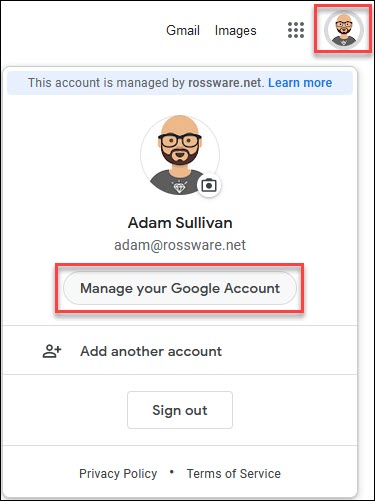
- Go to Google.com and click on the icon picture on the top right and select Manage your Google Account.
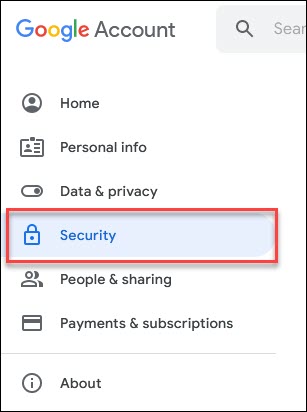
- Select Security on the right-hand side.
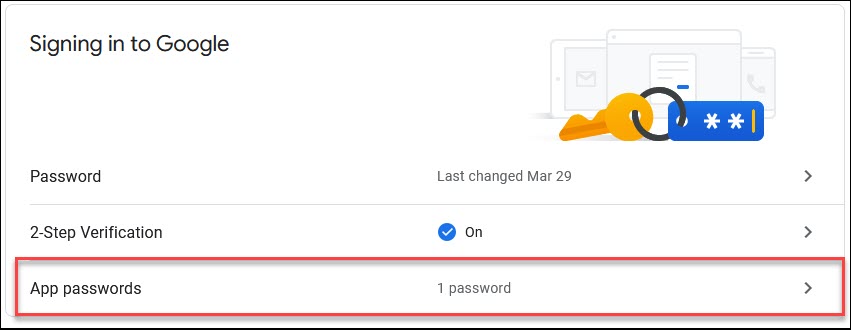
- Scroll down and select App passwords in the Signing in to Google section.
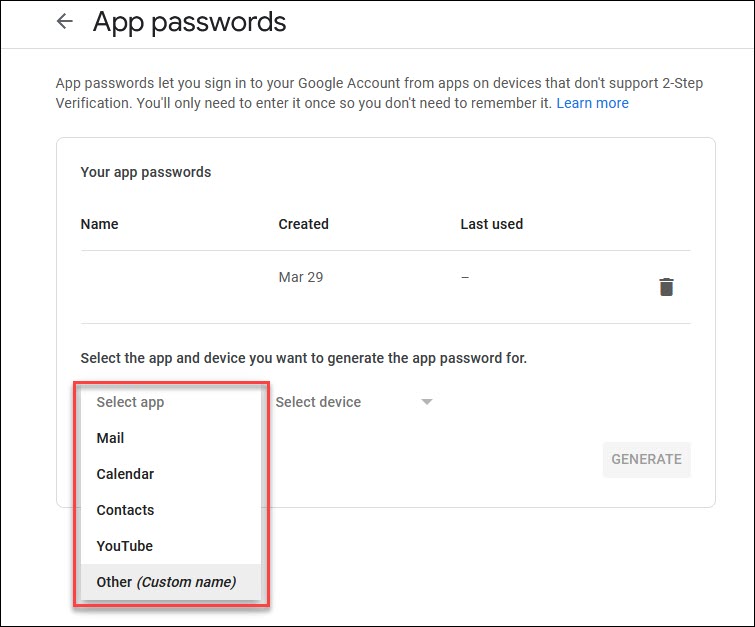
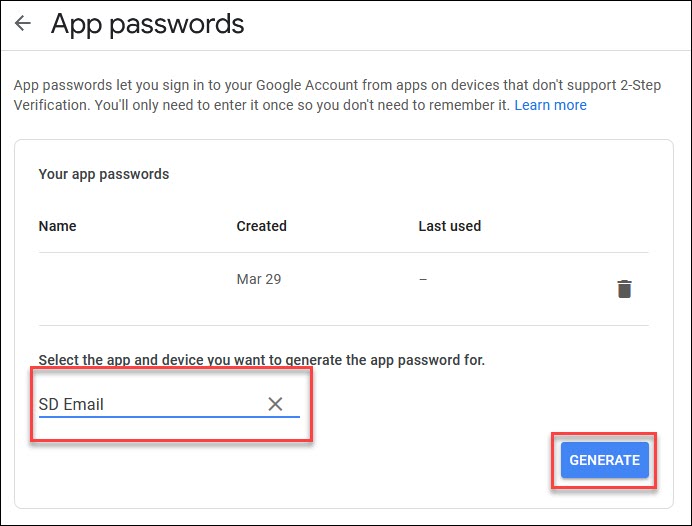
- When the App passwords window appears, click on Select app, then select Other (Custom name). You may type something similar to "SD Email".
- After you have selected an identifying name for your password, click the blue GENERATE button on the bottom right.
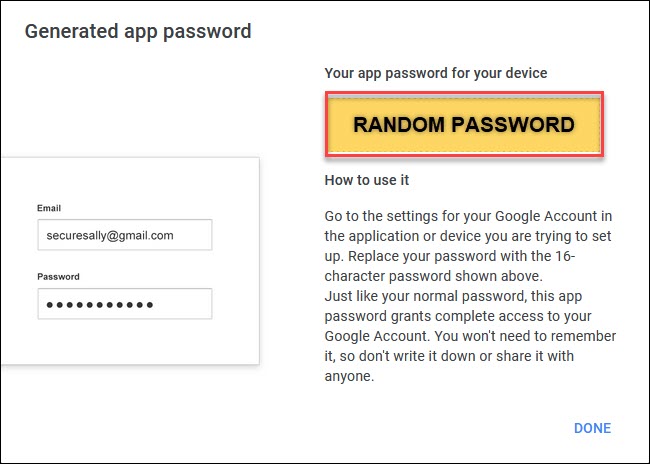
- Your randomly generated password to be used with ServiceDesk and it's affiliate programs will be presented in a yellow box on the top right. You may highlight, and Ctrl+C to copy, and then Ctrl+V to paste it into the password field of ServiceDesk's E-mail settings.