Updating Rossware programs
Before you update
In ServiceDesk, verify your UserName and Password are present in the About ServiceDesk form (CTRL + SHIFT + A) as they are needed for any of the updating methods listed below.

Updating with SD-Helper
To make the process of updating your Rossware programs seamless, you may download the SD-Helper application here.
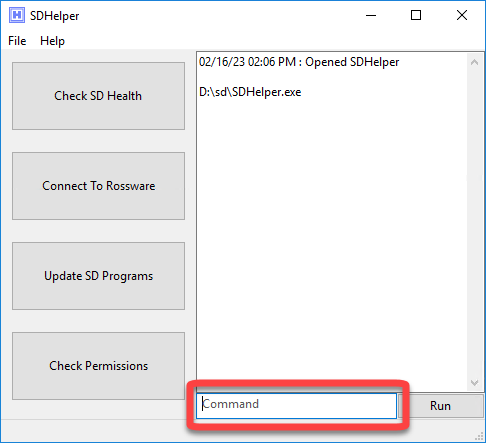
- Open the saved download file.
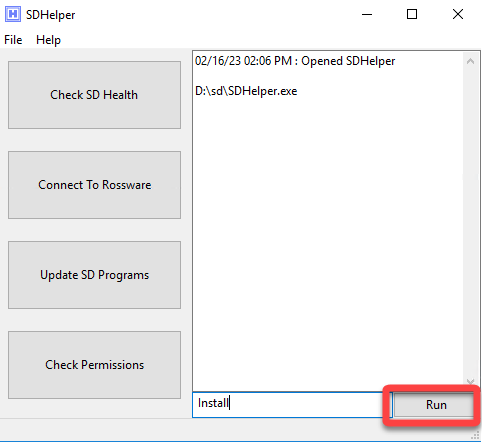
- Type the word "install" into the text box labeled command.
- Click the run button.
- Follow the prompts to select the SD folder where ServiceDesk is installed.
Once installed, you can use SD-Helper to update your Rossware Programs.
- Open SD-Helper.
- Click the Update SD Programs.
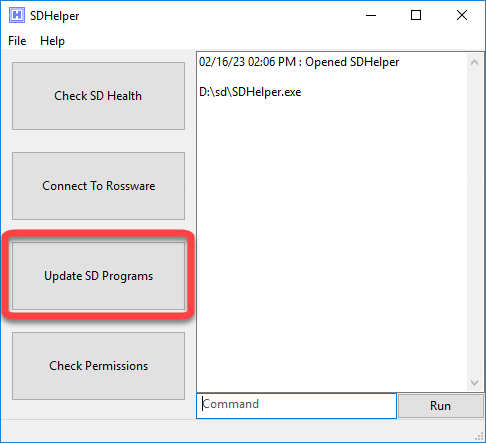
- Follow any prompts that come up.
- Close and start all programs on all stations for the applications listed with the note "Success!"
Use the method above to update your Rossware programs at least once a month.
Updating with manually downloaded files
If preferred, you may manually update each program. When downloading an update manually, it is best to make sure that all instances of the program are closed so the update file does not fail to unzip.
Each program has a method by which you can invoke an update.
- From ServiceDesk:
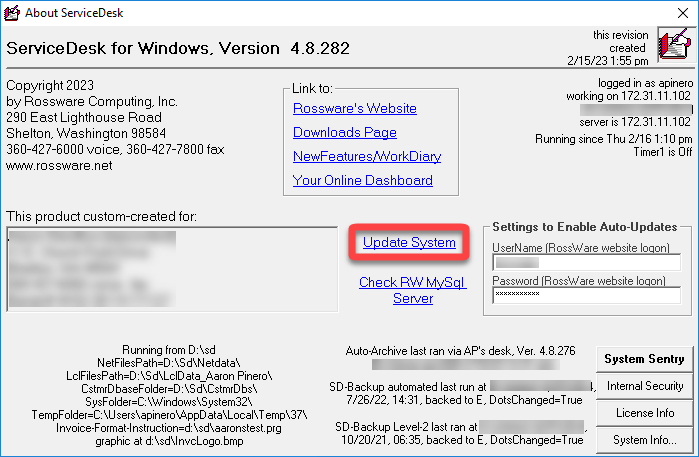
- Rossware Utilities have a button like this:

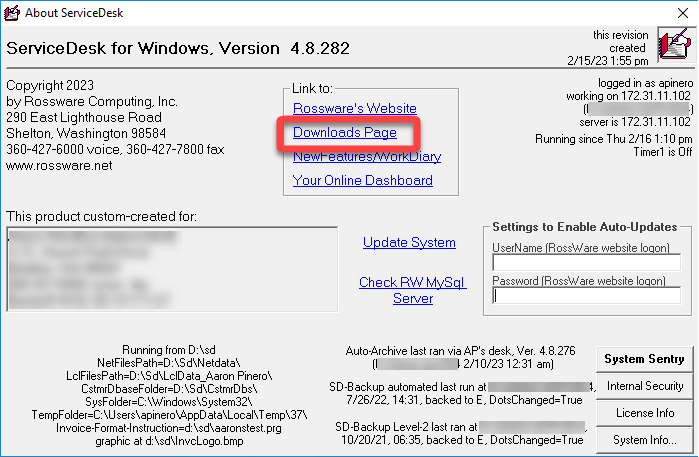
Individual program update links can be found on our website's downloads page. There is also a link to the downloads page within ServiceDesk:
When the update process is complete, please close and reopen any of the programs that were updated. This will ensure you are operating in the new version of the program.