Appointment-Reminder / Confirmation-Request system, options for structuring, and how to use
This is a system that has grown in flexibility, with an unavoidable accompaniment of increased complexity. Regardless, once you set for the results you want, daily execution should be very simple.
By way of background, initially these reminder/requests were via email only. Then we had clients that wanted the option to use robo-calls instead. Finally, we had clients who wanted the option to use text messaging (aka SMS, which stands to ShortMessagingService). Presently we’ve adapted the system to accommodate all such options.
Additionally, the system initially would send an email only to a single recipient (i.e., the first email address as listed in the consumer’s email box). Some users wanted ability to send to other email addresses, and/or to designate which particular emails addresses (among potential multiples) would be used. Similarly for robo-calling, initially the system was configured so that a robo-call could potentially go only to a telephone number as present in the first telephone box as applicable to the consumer. Now we’ve configured so that, optionally, you may explicitly designate which number is the intended target.
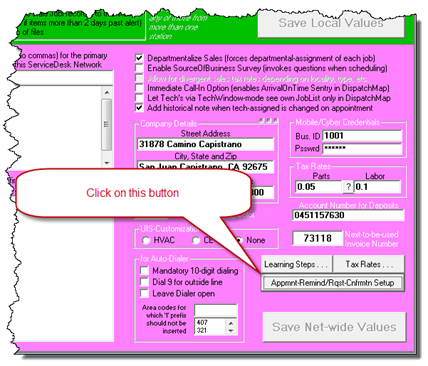
The setup for all these options is in an interface that’s accessed by going first to your Settings form (Ctrl-F1 is the shortcut) and by clicking there on the button as shown here:
That action yields this interface:
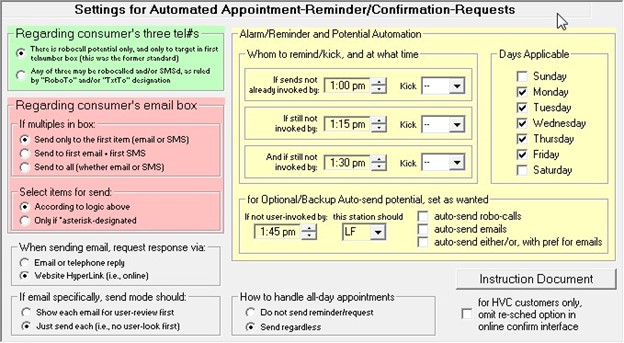
In regard to setting for control over which email addresses may be emailed (when you otherwise select to email/SMS), which telephone number may be robo-called (when you otherwise select to robo-call) and which telephone numbers may be text-messaged (when you otherwise select to email/SMS), all such relevant options are in the green and sections, as shown above. Additionally, wepeach-colored show the above with options selected in such manner as will produce traditional/old criteria results (i.e., same as before we added the option for any other control schemes, except that SMS is a new potential):
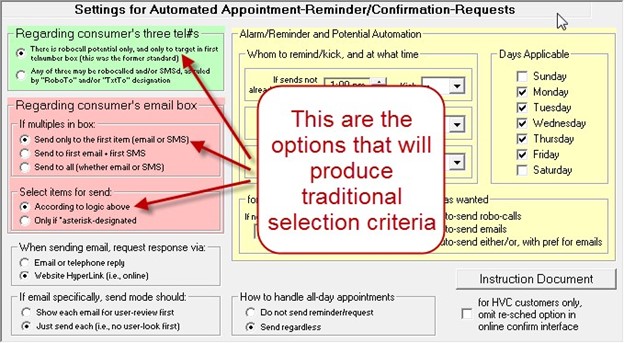
Your initial task in setting up this system is to consider which particular target-selection scheme will best suit your operation. Then, having made that determination, you need to select from among those green and options accordingly. Finally, please be certain to instruct your staff (for when theypeach-colored are creating Callsheets and resulting JobRecords) to setup telephone numbers, texting numbers and email addresses according to whatever scheme you have selected (if they don’t know and understand the scheme, they’ll be rather crippled in regard to appropriate setup).
Let’s now discuss what are the various scheme options, to assist you in judging what’s best for your operation.
Regarding Reminder/Request Emails (and Text-Messaging as Relevant to Telephone Numbers as Potentially Placed Within a Consumer’s Email Box)
Emails may be auto-sent only on the basis of one or more or email addresses as present in the consumer’s email box (i.e., as present in the underlying JobRecord).
If you leave the setup selection criteria setting as default (i.e., same as shown on the preceding page), a reminder/request will go solely to the first email address as present in that box (assuming that the first item in that box is indeed an email address, as opposed to being a telephone number that’s intended for a texting target).1
If you did not know, you are positively permitted to place multiple items into the email boxes as present in a Callsheet and/or JobRecord. You simply should separate each with a comma (an added space is optional). It is always the consumer’s particular email box that the system will look into when auto-sending reminder/confirmation requests (i.e., if it’s a single-party/COD job, it’s the email box in the first section; if it is instead a third-party-payer job, it’s the email box in the second section).
If you instead select this combination:
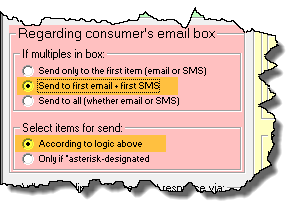
An email reminder/request will still go only to one email, but a text message may additionally go to an email-box-included telephone number. For example, if the consumer’s email box had the text “joe@gmail.com, sally@gmail.com, 360-427-6000” (and if a user operationally chose the option to send Email/SMS messages), an email would go to joe@gmail.com, plus a text message would go to 360-427-6000.
If you select this combination (and of course if a user operationally chooses the option to send Email/SMS messages):
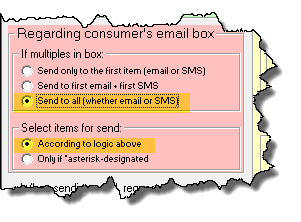
An email will go to each email as present in the consumer’s email box, an email will go to each of potentially multiple email addresses as found in the target email box, and text messages will go to each of potentially multiple telephone numbers as may be present in the same box. For example, if the consumer’s email box had the text “joe@gmail.com, sally@gmail.com, 360-427-6000”, an email would go to both Joe and to Sally, plus a text would go to 360-427- 6000.
Now consider a rather different scheme. If you select this option:
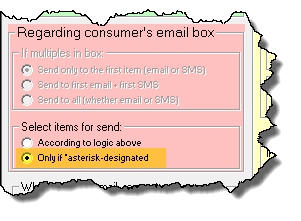
Things change quite dramatically. Now the choice as to what’s sent to (to emphasize, from the consumer’s email box) is entirely controlled by whether you have placed an asterisk at the front of a potential target. For example, if the consumer’s email box has the text “joe@gmail.com, sally@gmail.com, 360-427-6000” the system will refrain from sending either email or text message to any of what might otherwise above appear as potential targets. If on the other hand the email box contains this text: “joe@gmail.com, *sally@gmail.com, 360-427-6000” (and with the scheme setting as above shown), the system will know that an email should go to sally@gmail.com only, and that no text message should go to 360-427-6000, for there is no asterisk at its front.
Regarding Reminder/Requests Text-Messaging (In Particular, for Telephone Numbers as Placed within any of the Consumer’s Three Telephone-Number Boxes.
In any case where you wish for a telephone number to be the target of a text message, you have two options:
As noted in the preceding section, one or more telephone numbers may be placed in the consumer’s email box, much the same as if it were an email address instead. If so, the rules for whether that telephone number is in fact selected are exactly as above-described, but with one exception. At present, the system will never text-message to more than one target as connected with reminding on a single appointment.
If you have selected this option in your setup interface:
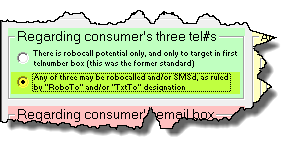
A telephone number as placed into any of the three dedicated consumer telephone number boxes can be express-designated for text-messaging. It’s done by use of a key expression, which must be placed into the TelSuffix box connected to that number. The key expression is “TxtTo”. Thus, if you wanted a particular telephone number—as present in a telephone number box—to be the target of text-messaging (and if you were not using method A as above described), just assure the expression “TxtTo” is present in the connected TelSuffix box, as follows:
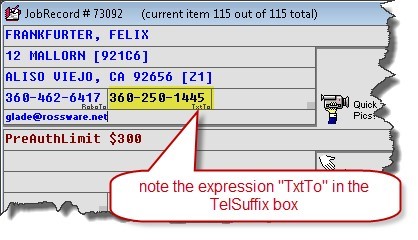
Please remember the system will not text-message on a given appointment/job to more than one telephone number target (so designating more than one is fruitless). Also please note you may have other text within the TelSuffix box. That magic “TxtTo” expression may be combined within anything else. As long as that particular string exists there, the system will see it and react accordingly.
Regarding Reminder/Request for RoboCalls
With this setting:
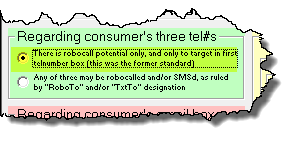
You’ll get the traditional result, which (assuming you have otherwise requested robo-calls), is a robo-call being sent only to a telephone number as present within the first of the consumer’s three telephone number boxes.
If you instead choose this:
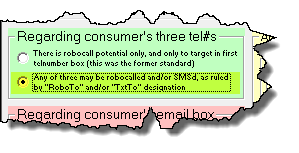
The system will instead look to see in which of the three consumer email boxes (if any) you have placed another key expression (or rather, in which of the three connected TelSuffix boxes). The key expression for designating for a robo-call is “RoboTo”. Thus, if the above is your setting and you have not placed that key expression into the TelSuffix box as connected to any of the consumer’s three designated telephone numbers, there will be no robo-call going out, even if otherwise requested. If on the other hand you have placed that key expression into the first connected TelSuffix box (and assuming you otherwise request robo-calls), then a robo-call will indeed go out on that first number. Of, if on the second, then on the second, etc.
We realize it may require a little effort on your part to understand how to work the options as provided, and to decide which scheme works best for your circumstances. We have provided this variety of schemes because for some offices one particular design may work best, while for some it may be another.
Please work to choose what’s best for your office, set accordingly, and be sure your personnel are instructed to setup each Callsheet/JobRecord in a manner that will achieve the desired result, according to the design you have set.
BTW, once you’ve set your scheme, the actual send-out of reminder-confirmation requests is generally accomplished by going to the DispatchMap (F5 is the shortcut). Typically, you’ll strike Alt-P on your keyboard to get these options:
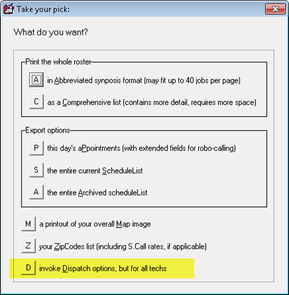
And you’ll select “D” as above-highlighted. You’ll get this set of options:
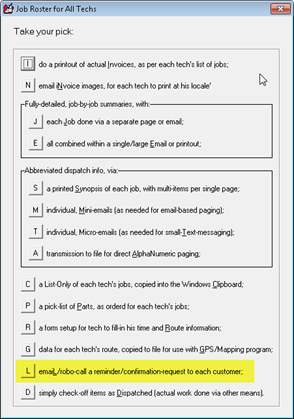
And you’ll select “L” (as again above-highlighted). Then you’ll get this set of options:
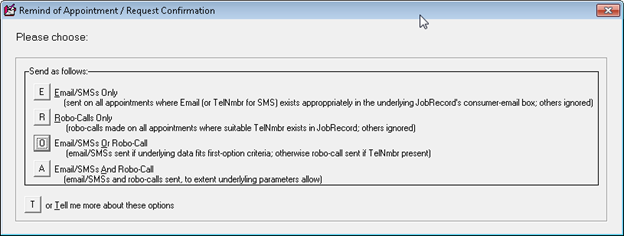
Basically, this is where you select what kind of reminder/confirmation-requests you directly and presently wish to send (and email addresses for emailing, telephone numbers for robo-callng and/or telephone numbers for text-messaging are picked, for such sending, according to whatever selection scheme you have specified).
We think for most companies it’s likely the third option (as in fact above-selected) that is best, for it will send emails and SMSs to the extent it finds suitable targets under whatever scheme you have set, and will robo-call only if it fails to find a suitable email or SMS target. The other options are rather self-explanatory. If, incidentally, you only wanted to invoke a send-off for appointments as applicable to a particular tech, you’d just click on this name. This would produce a set of options similar to as shown two items above, and otherwise you’d proceed similarly.
One more topic concerns the fact that humans are human, and it’s possible that a human might forget on some days to initiate these send-offs. So, we have a reminder system. Our general thinking is its best if a human initiates the send-off as early in the day as the next work-day’s schedule has been finalized (since a machine can’t really know that, it’s best if normally a human is involved. Aside from that, we believe setup for the reminder system (with fallback to a machine as last resort) is self- explanatory, as present in the yellow section as shown here.