Changing Other User's Password (as Administrator)
On occasion, your users may forget or lose their passwords and be unable to login. When your server was set up, at least one of your accounts was set up with Administrator privileges, typically the business owner or management. Log into this account to change passwords for your users.
Begin by searching "computer management" in your search bar. The search bar can be found using the magnifying glass icon near your start menu. As you begin typing, the first result should show.

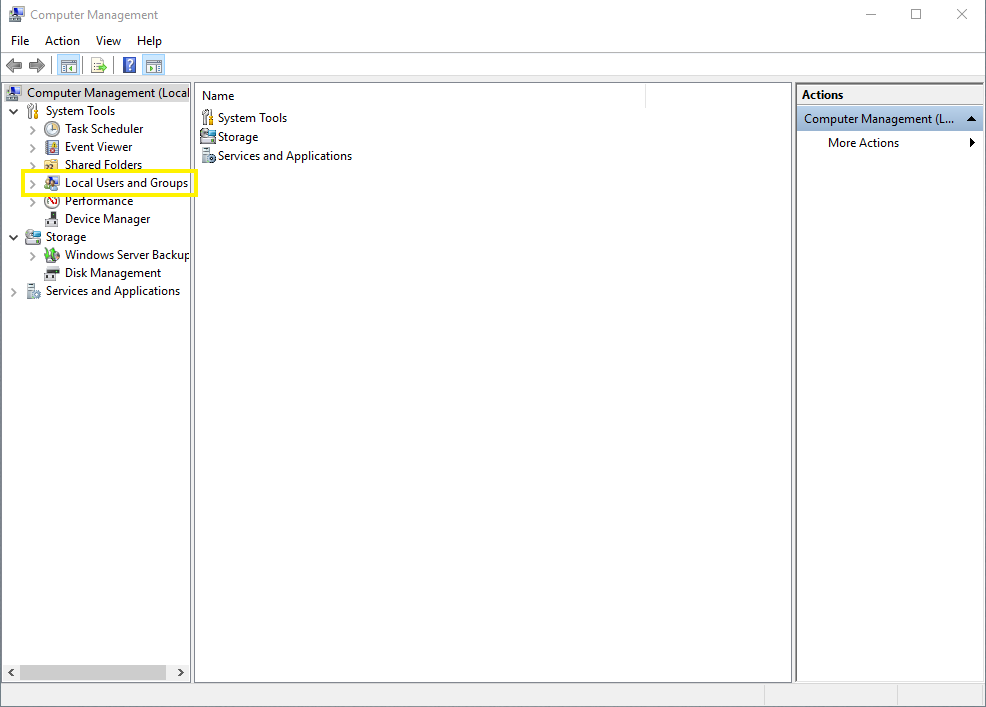
When the computer management window shows, navigate to "Local Users and Groups", found under "System Tools".
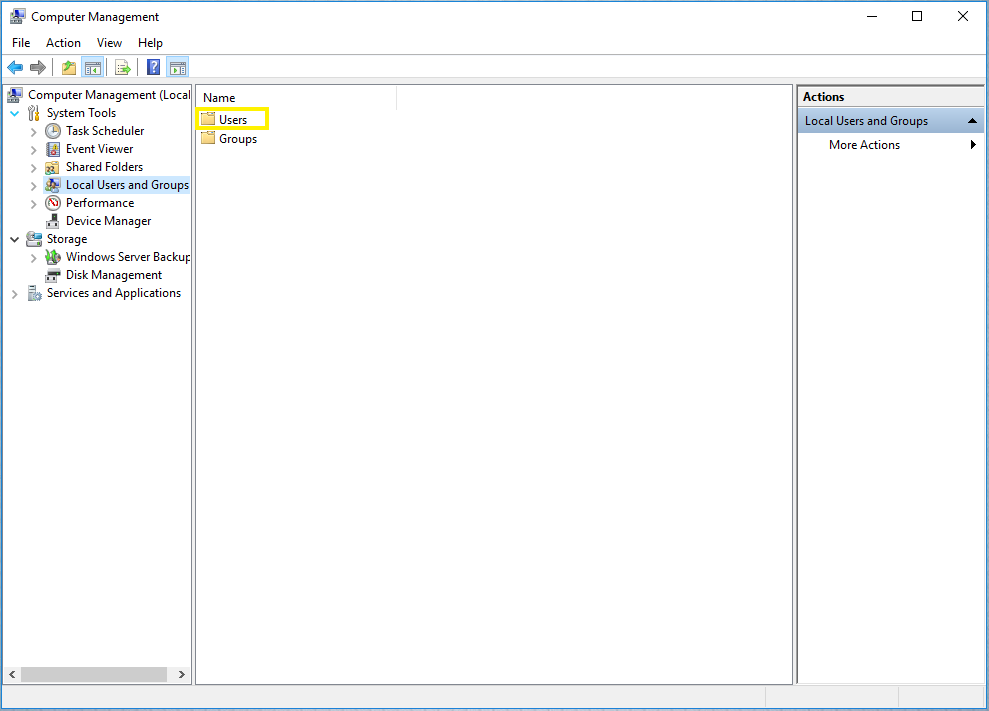
Then double click "Users".
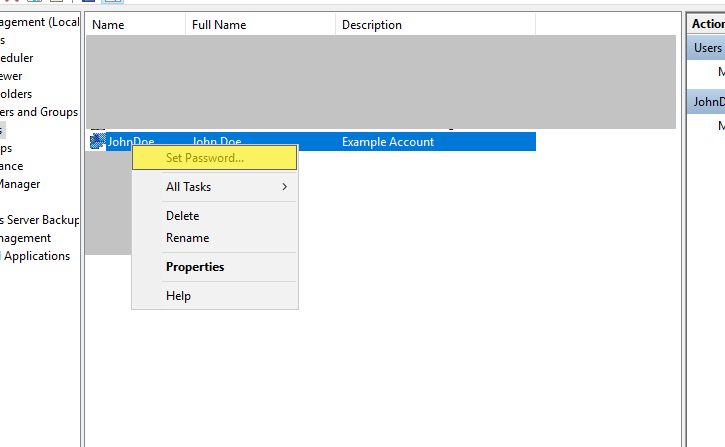
Right-click on the account whose password you would like to change and select "Set Password".
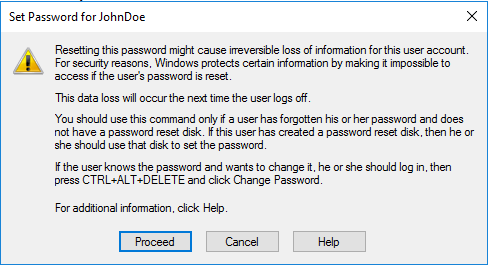
A warning will appear, click "Proceed".
Carefully enter the new password you want to change to twice, then press "Ok". Please review the password requirements for the RSS Servers.
Please see this article regarding password requirements.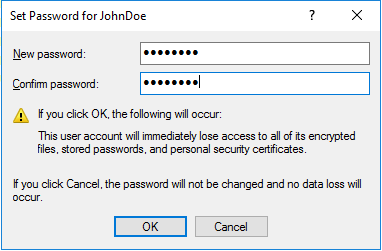
The password is now changed and your user may log in!