Renaming User Accounts (User Login Name)
I want to be explicit so there is good understanding of which of the account "names" I am talking about. The user login name is the identifying name a user enters into the Remote Desktop Utility to access the RSS Server. I am not referring to a user account's Full Name (that appears on the screen when a user successfully logs in), or the user account Description. Within the Computer Management program, the Login Name I am referring to is under the Name column.
It is highly advised against altering a user account's Login Name. Instead the best method, if you need to modify a user's Login Name, is to first delete the existing account, and then create a brand new account. Guides on both of these procedures exist at our Help Center. As to the reason why this process is so inadvisable is that when an account is created, there are many unique settings created that are specific to that user account. In addition to those settings a User Folder is created bearing the same name as the Login Name. When a user's Login Name is altered, it will keep the prior name for these unique settings and for the User Folder. And until that user fully signs out, and signs back in, they will experience many issues within their RSS Server account because some of the changes will not have taken effect yet. In some cases where we must trouble shoot an issue within a user's RSS account, it is necessary to check things within their User Folder. When the User Folder has a name different than the Login Name, this can create confusion and delay the troubleshooting process.
How to Transfer Settings/Data from an Old User Account to a New User Account
If you need to "remake" a user account (deleting the old, and creating a new one) and wish to transfer the ServiceDesk settings and user data associated with the old account to the new, there are a couple of steps involved. Since this can be a complex task, especially for newer administrators, you are encouraged to request the assistance of a Rossware RSS Server Administrator.
If you feel comfortable performing this task (of moving SD settings and user data) from one account to another, here are some simple steps on how to do so. But please be aware that once an account is deleted, there is no way to retrieve some of the settings and/or data. This task should only be attempted if you are comfortable with the below processes.
First let's export the SD settings from the registry. You can open up the Registry Editor by searching for "regedit" from Windows Start Menu. Once the Registry Editor has opened, navigate to HKEY_CURRENT_USER → Software. Towards the bottom you will see a folder labeled VB and VBA Program Settings. Right click on this folder and Export it to the Desktop. We are choosing the Desktop to make this file easier to access in a later step.
At this time you may want to export the bookmarks and passwords for whatever web browser is being used. Since there are different methods for each web browser, I will not go into detail into all of the steps. You should be able to do a quick Google search for "how to export bookmarks/passwords from name of web browser" for an easy guide.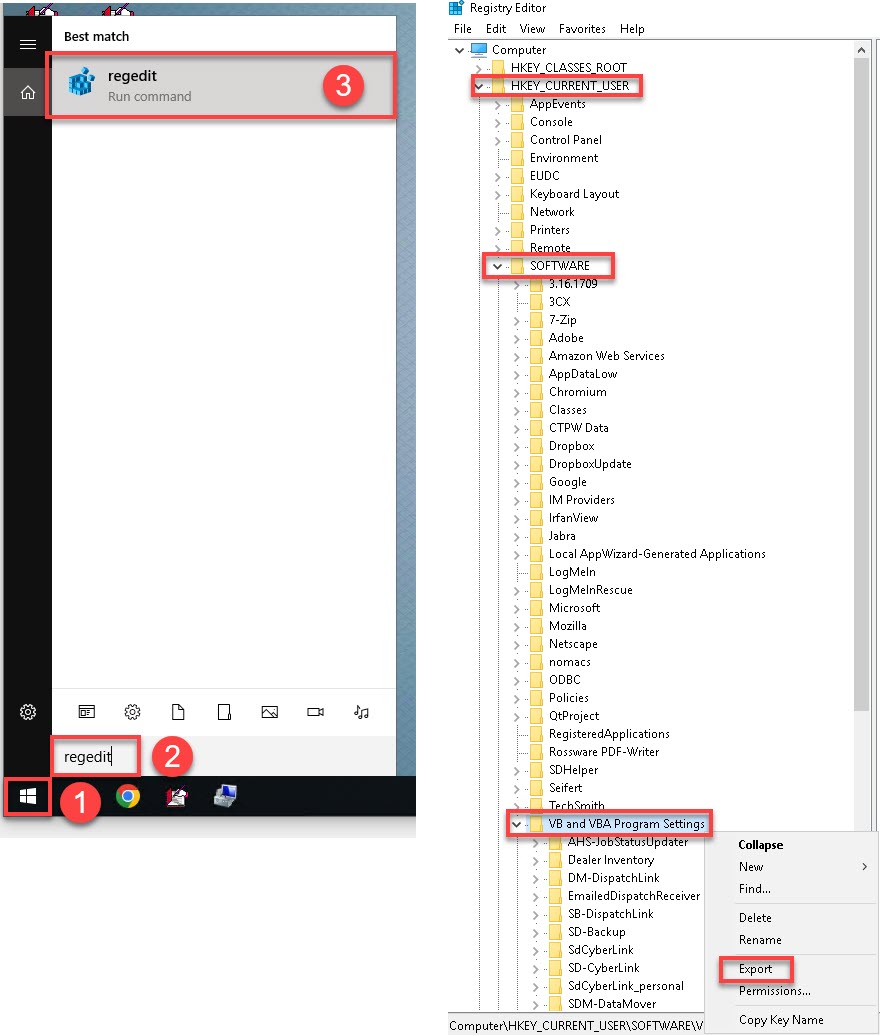
Once you have exported the SD settings from the registry, you will want to verify that you can easily identify the User Folder associated with this user's account. Most of the time the User Folder will have the same Login Name as the account. The easiest way to do this is to open File Explorer and navigate to Local Disk (C:) → Users → user's Login Name folder → Desktop. You should compare what you see there to what you see on the Desktop. You should also see the registry export file on both the Desktop, and within the Desktop folder. It is a good idea to remember the user's Login Name folder for later.
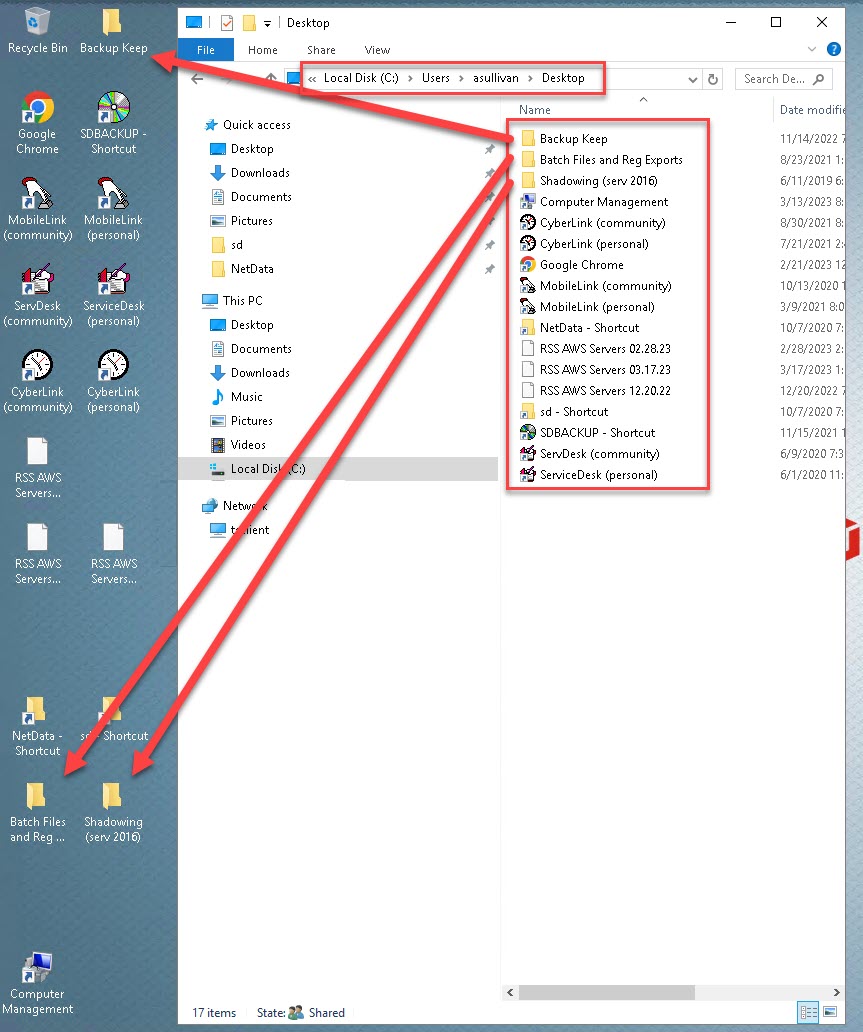
After you have verified that you can identify the correct User Folder, you can go ahead and create the new User Account. Once the account is created you can go ahead and copy over the data from the prior account to the new one. I find it is easiest to open both User Folders side-by-side and then copy and paste the files from the old User Folder to the new User Folder. Usually, the only folders I move are; Desktop, Documents, Downloads, Favorites, Music, Pictures, and Videos. You can hold down the Ctrl key while you select these folders in order to select multiple at the same time. Then all you need to do is paste them into the new User Folder. There is a good chance you will get a notification asking if you would like to replace or skip files. Go ahead and choose "Replace the files in the destination". In some cases (especially if the account is a Standard User) you may need to copy and paste these folders using an Administrator account.
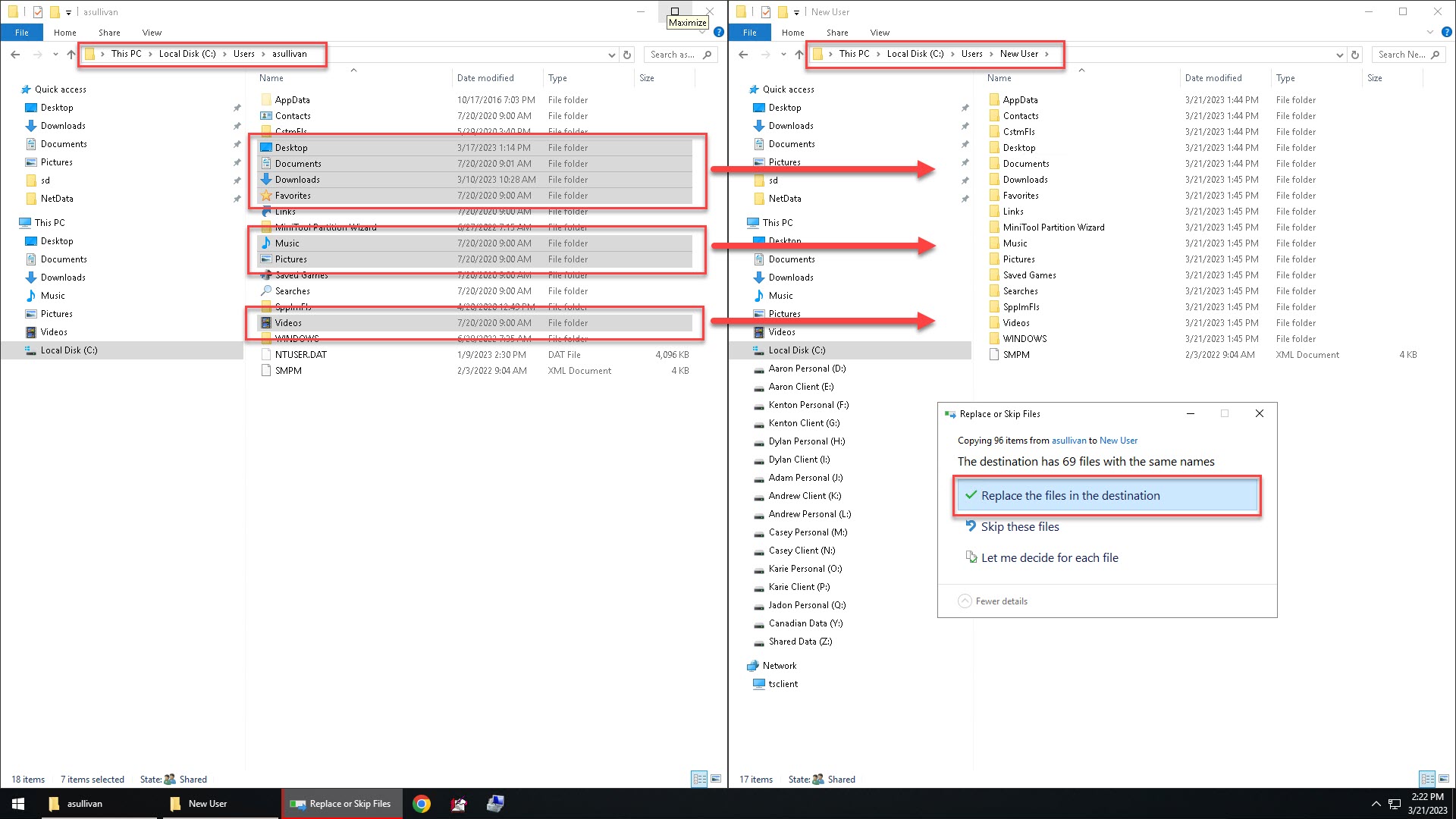
After copying the files over, you may now delete the old account. The next step in setting up the new account is to import the SD Settings. On the Desktop there should be the registry settings you exported earlier. You can double click on it and click the yes/OK button on each prompt. Now there should be no setup needed within ServiceDesk. I would like to mention that unless disk space is at a minimum on your RSS Server, it is perfectly fine to leave the old User Folder in place in case you need to retrieve other files from it later.